Orbit sends automated emails in response to key events across the platform — registrations, membership changes, payment confirmations, and more. Each automated email can be customized or disabled independently.
How Automated Emails Work
Automated emails are triggered by specific events in the system. When the event occurs (e.g., a user registers for an event), Orbit automatically sends the corresponding email to the relevant user. No manual action is required.
Each automated email:
- Uses the same branding as your manual emails (logo, colors, header, footer)
- Supports dynamic fields for personalization (e.g.,
{first_name},{event_name}) - Is logged for tracking and debugging
- Includes duplicate prevention — the same email won't be sent to the same user for the same trigger within 24 hours
Available Automated Emails
Account
| Trigger | |
|---|---|
| Welcome | Sent when a new user account is approved |
Membership
| Trigger | |
|---|---|
| Membership activated | Sent when a membership is activated (new signup or manual activation) |
| Expiring in 90 days | Sent 90 days before membership expiration |
| Expiring in 30 days | Sent 30 days before membership expiration |
| Expiring in 7 days | Sent 7 days before membership expiration |
| Membership expired | Sent on the day the membership expires |
Membership expiration reminders are checked daily and sent automatically at the appropriate intervals.
Events
| Trigger | |
|---|---|
| Event registration confirmation | Sent immediately when someone registers for an event |
| Event reminder | Sent 24 hours before an event starts |
Event reminders are checked daily and sent to all registered attendees of upcoming events.
Courses
| Trigger | |
|---|---|
| Course enrollment confirmation | Sent when a user enrolls in a course |
Payments
| Trigger | |
|---|---|
| Payment confirmation | Sent when a payment is successfully processed |
| Payment failed | Sent when a payment attempt fails |
Customizing Automated Emails
Each automated email can be customized from Mail > Automated Emails:
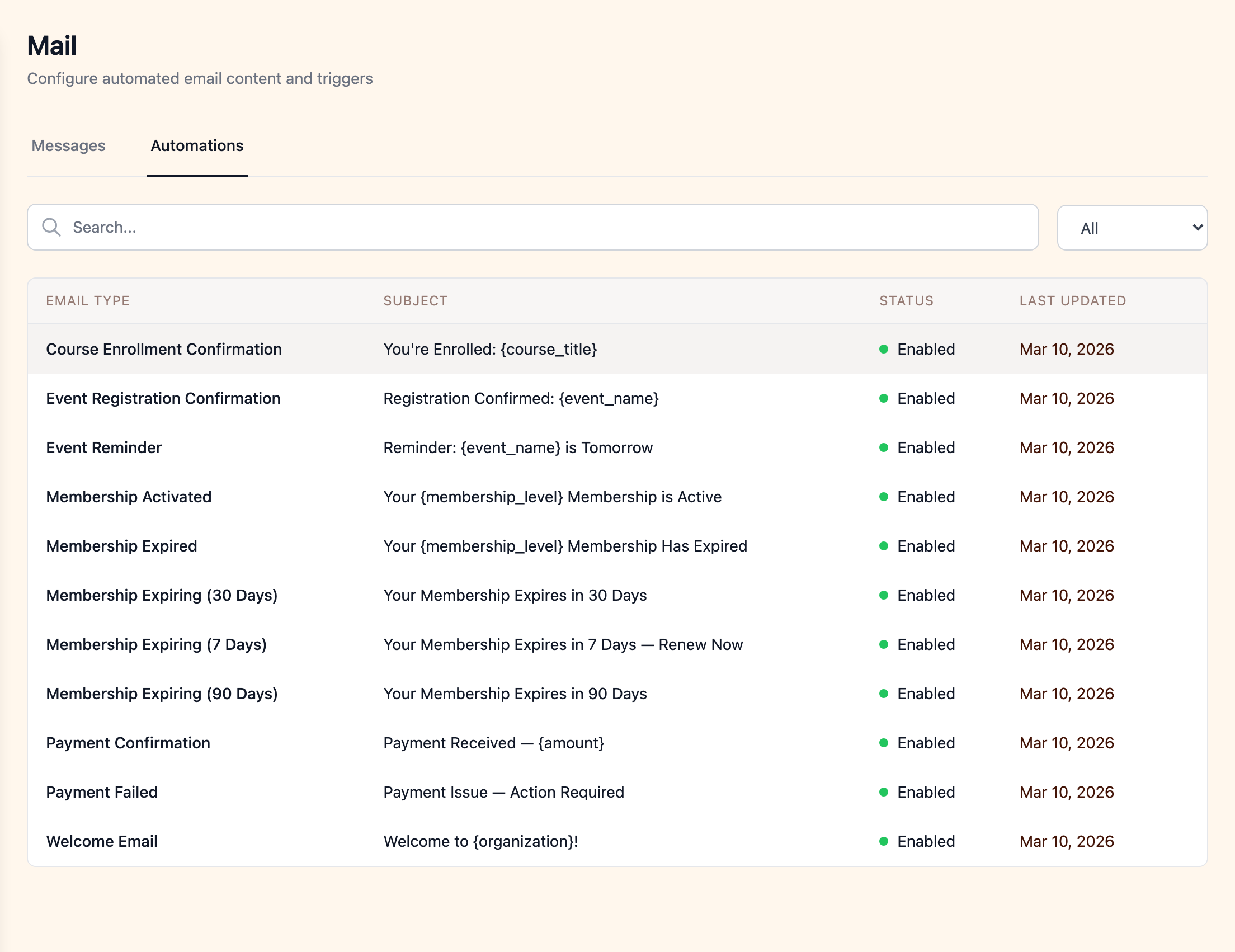
Subject Line
Edit the subject line for each email type. Dynamic fields are supported (e.g., "Welcome to our community, {first_name}!").
Email Body
Customize the content using the same rich text editor as manual emails. You can include text, images, tables, and dynamic fields. The email is rendered with your organization's branding automatically.
Enable or Disable
Each automated email has an enable/disable toggle. Disabled emails are silently skipped when their trigger event occurs. This lets you turn off specific notifications without affecting others.
Email Categories
Automated emails fall into three categories that control how subscription preferences apply:
| Category | Behavior | Examples |
|---|---|---|
| Transactional | Always sent — cannot be opted out of | Password reset, payment receipts |
| Operational | Sent unless the user opts out of account notifications | Membership reminders, event confirmations, enrollment confirmations |
| Marketing | Sent only to users subscribed to marketing emails | Newsletters, promotional content |
Users can manage their preferences for operational and marketing emails from the unsubscribe preferences page. Transactional emails are always delivered regardless of preferences.